

I recently put together a TUI demo gif for my no-mistakes tool’s readme and came out of the process pretty happy with it: crisp text, a zoom on the key command, sensible pacing, about 700KB, and the whole thing regenerates with one make command.
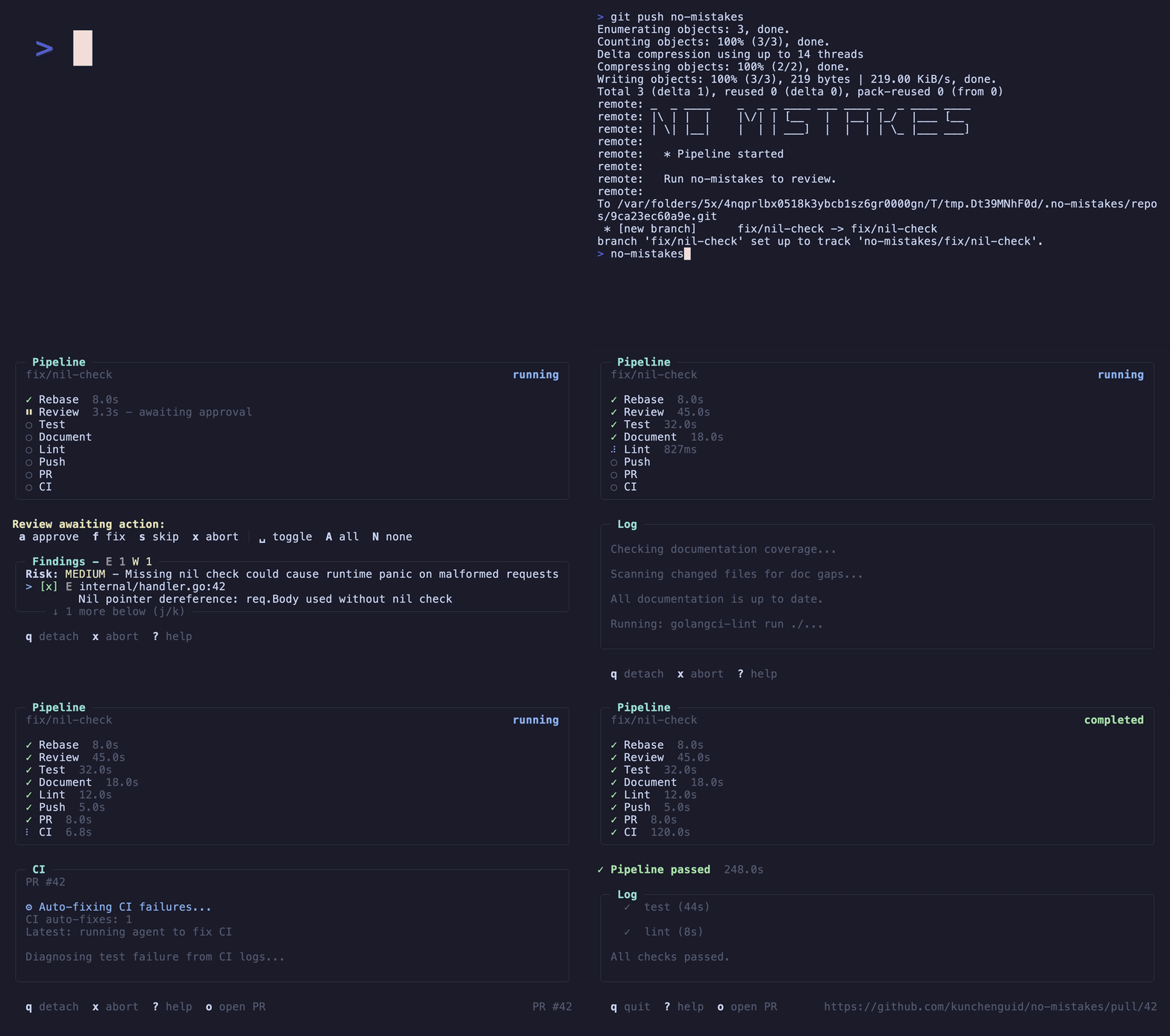
I was a little surprised how far you can get with just a couple of off-the-shelf tools and some tuning. No video editor, no screen recording software, no manual export step. If you’re shipping a CLI or TUI and thinking about a readme gif, I figured the setup is worth writing up.
Here’s how it works.
The Stack
Three tools, each doing one thing:
vhsdrives the terminal and captures framesffmpeghandles zoom, speedup, and color optimizationmakeglues it together
That’s the whole pipeline.
VHS: Reproducible Script to Record Terminal Programs
VHS from Charm is the thing that makes this reproducible. You write a .tape file that describes terminal dimensions, env vars, and a sequence of Type/Enter/Sleep commands. VHS spins up a headless terminal, executes the script, and spits out a gif.
Here’s a snippet of my demo.tape:
Set FontSize 50
Set Width 2750
Set Height 1625
Set Theme "Catppuccin Mocha"

Sleep 1s
Type "git push"
Sleep 1s
Type " no-mistakes"
Sleep 3s
Enter
Sleep 2s
Type "no-mistakes"
Sleep 3s
Enter

Sleep 9s            # wait for review step to surface findings
Sleep 2.5s          # linger on the approval screen
Type "f"            # press f to fix
Sleep 29s
Sleep 2s
A few things worth calling out.
Record at a huge resolution. The canvas is 2750x1625 at 50pt font. That’s way bigger than any terminal I actually use, and way bigger than the final gif. The main reason is to leave some headroom for zoom: later in the pipeline, ffmpeg crops a small region and upscales it for the intro zoom effect. If the source is low-res, that crop ends up pixelated. Recording big means I can zoom into any region and still get sharp output. Crisp text at the final output size is a nice bonus - downscaling 2750px to ~800px with a good filter keeps every character readable.
Use Hide for offscreen setup. VHS has a Hide / Show pair that lets you run a setup block before the user-visible portion starts. In my tape, the Hide block creates a scratch git repo, initializes the tool’s config, sets up a bare upstream, and clears the screen. Not interesting to watch. Absolutely necessary for the demo to actually do something. Show kicks in and the recording begins.
Sleep values are hand-tuned. There’s no shortcut. I ran the tape, watched the output, bumped a number, ran again. This is the tedious part, but it’s also where the rhythm of the video comes from - the pauses are the difference between “watchable” and “what am I looking at.”
Mock a Deterministic Demo
One thing that comes up fast: if your tool does real work with real network calls, or real LLM agents, the recording is at the mercy of a stochastic system for something that needs to be identical every time. A review step that takes 30s today takes 45s tomorrow. Agents take different paths. Networks hiccup.
For no-mistakes, I added a demo mode behind an env var:
Env NM_DEMO "1"Inside my program, that flag swaps out the real implementation for a canned mock. The TUI doesn’t know the difference - same step names, same log streaming, same approval flow, same step completion durations. The only thing that changes is what’s running underneath.
You don’t need this for every tool. If your CLI is deterministic and fast, skip it. But if your flagship flow takes minutes or talks to the outside world, you’ll want some version of it.
The key design decision, if there is one: the demo mode swap lives at the pipeline layer, not the UI layer. The TUI is identical between real and demo runs, which means the demo gif is also a low-key integration test. If the UI breaks, make demo shows it.
Pacing: Real Time vs Displayed Time
This is where it gets fun.
The real pipeline takes minutes. A review is maybe 30-45s. Tests can be a minute. CI is several minutes. Recording that is unusable.
But I also don’t want the TUI to show “Review (0.2s)” - that breaks the realism of the demo. The whole point is that it looks like a real run.
So every demo step carries two durations:
&demoStep{
    name:       types.StepReview,
    delay:      5 * time.Second,     // actually block this long
    displayDur: 45 * time.Second,    // report this to the TUI
    ...
}
And the executor honors the override when reporting:
durationMS := executionMS + time.Since(phaseStart).Milliseconds()
if durationOverrideMS > 0 {
    durationMS = durationOverrideMS
}
The UI cheerfully renders “Review - 45s” in the completed-step list, even though only 5 seconds of wall clock went by during recording.
The other half of pacing is log streaming. If you dump a wall of text in a single frame, the effect is jarring and unreadable. Spread the lines across the step’s duration instead:
pause := total / time.Duration(len(lines))
if pause < 50*time.Millisecond {
    pause = 50 * time.Millisecond
}
for i, line := range lines {
    if i > 0 {
        demoWait(ctx, pause)
    }
    sctx.Log(line)
}
So “Reviewing diff against main...” / “Analyzing changed files...” / “Checking for bugs...” appear at human-readable intervals. Same idea as a loading shimmer: it’s not about truth, it’s about communicating progress at the speed a viewer can follow.
FFmpeg: The 20-Line Polish Pass
This is the part that surprised me. I’d assumed “real” demo videos needed After Effects or at least something like iMovie for basic editing like zoom, transitions, and speed ramps. Turns out ffmpeg does all of it in a single filter chain.
VHS outputs a raw gif. Two ffmpeg passes turn it into the final gif and mp4.
Here’s the gif pass:
ffmpeg -i demo_raw.gif -filter_complex "\
    [0:v]split[orig][zoom_src];\
    [zoom_src]crop=963:570:0:0,scale=1100:650:flags=lanczos[zoomed];\
    [orig]scale=1100:650:flags=lanczos[base];\
    [base][zoomed]overlay=0:0:enable='lt(t,4.04)',setpts=1.9*PTS,\
    split[s0][s1];\
    [s0]palettegen=max_colors=128[p];\
    [s1][p]paletteuse=dither=sierra2_4a\
" -r 10 -y demo.gif
Three effects, stacked.
Zoom-then-reveal. The first 4 seconds of the demo is the user typing git push no-mistakes, which is the whole pitch of the tool. Zooming in makes it unmissable. The filter splits the video into two streams, crops and upscales one (zoomed view of the top-left), and overlays it on the base stream only while t < 4.04s via enable='lt(t,4.04)'. After that, the overlay is disabled and the full TUI reveals itself - which happens to be the moment the TUI actually launches. Visually it reads as “you typed this, now watch what happens.”
1.9x speedup via setpts=1.9*PTS. Even with display durations clamped, the full demo runs about 53 seconds. Too long for a readme gif. 1.9x compresses it to about 28 seconds without anything feeling rushed, because the mock step pacing was tuned with this speedup in mind. You can (and should) tune your pacing and your speedup together as one loop.
Palette optimization. palettegen samples the frames and picks 128 optimal colors, paletteuse applies them with Sierra2-4a dithering. Without this, the gif is either oversized or has ugly banding on text edges. With it, the final output sits around 700KB for a 28-second animation.
The mp4 pass is the same zoom and speedup filter chain, minus the palette dance, encoded to H.264. Twitter and most docs renderers prefer the mp4, readme uses the gif, both come out of the same source.
The make demo Target
All of it lives in one target:
demo: build
    vhs demo.tape
    ffmpeg -i demo_raw.gif ... -y demo.gif
    ffmpeg -i demo_raw.gif ... -y demo.mp4
    rm -f demo_raw.gif
make demo. Gif updates, mp4 updates, intermediate file goes away. Runs in CI if I want. Produces the same output every time.
Summary
If you’re shipping a CLI or TUI, this is a really high leverage setup. My rough advice:
Use VHS, not screen recording. Scripted, deterministic, no cursor wobble.
Record big. High resolution, large font. Downscale at the ffmpeg stage.
Put
Hide/Showaround your setup. Your viewer doesn’t want to seemktemp -d.Tune pacing by ear. There’s no formula. Watch the output, adjust the sleeps, run again.
Let ffmpeg do the flashy stuff. Zoom overlays, speed ramps, and palette optimization are all one filter chain away. No video editor required.
If your tool is slow or non-deterministic, gate a mocked demo mode behind an env var.
An hour of work and a 20-line Makefile target gets you a demo that’s deterministic, easy to regenerate, and nice to look at. That’s a trade I’d happily make again, and hopefully this writeup saves you some of the figuring-out I had to do.